Connector App Navigation
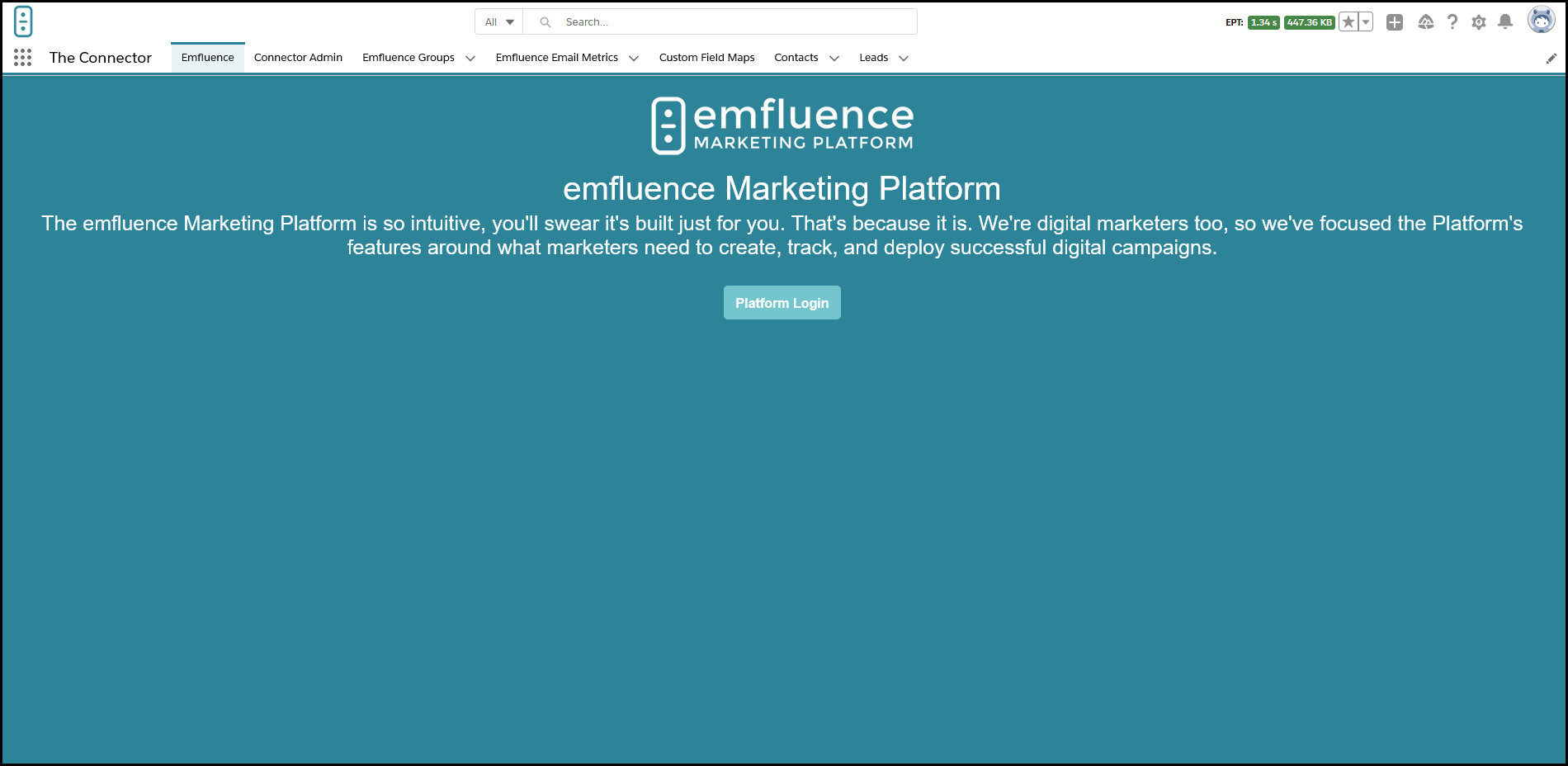
When first accessing the emfluence app page, the below screen will display. These are the default tabs available on The Connector app in Salesforce.

Click the below options to expand detailed examples on each tab.
Click Platform Login to open a new tab with the emfluence login page.
This section includes a drop-down for Current Sync Options, Support, and The emfluence Connector Setup.
Current Sync Options
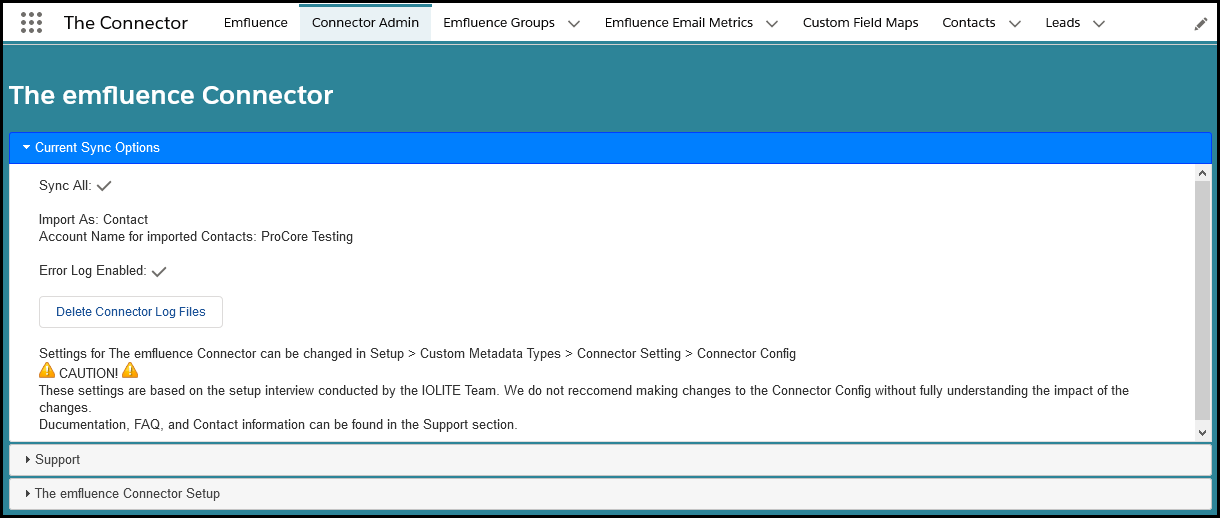
Within this section, you're able to validate that your Connector is syncing all (or not), whether the imported Contacts from emfluence are importing as Contact or Leads, and the default Account Name for Imported Contacts if an Account Name does not exist.
Support
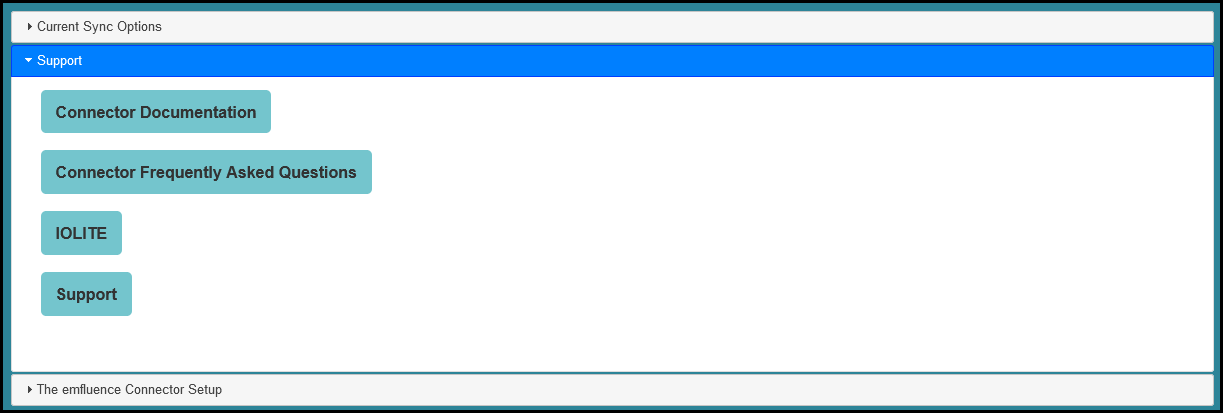
Within this section, URLs to support documentation or contact is available.
The emfluence Connector Setup
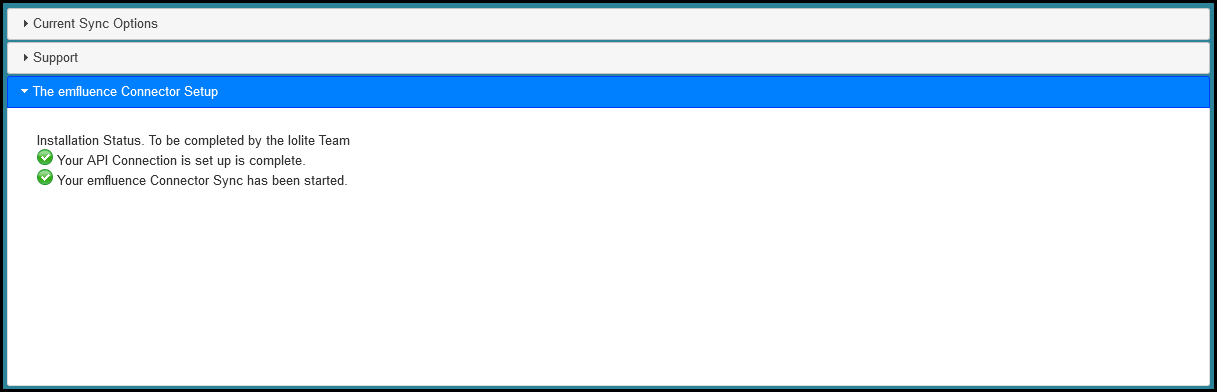
Within this section, your Connectors API Connection can be verified.
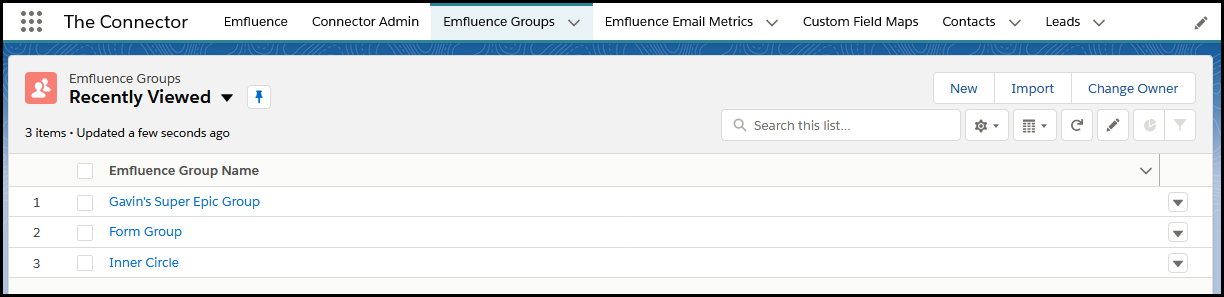
Groups created in emfluence will sync to this section (you cannot create groups in Salesforce).
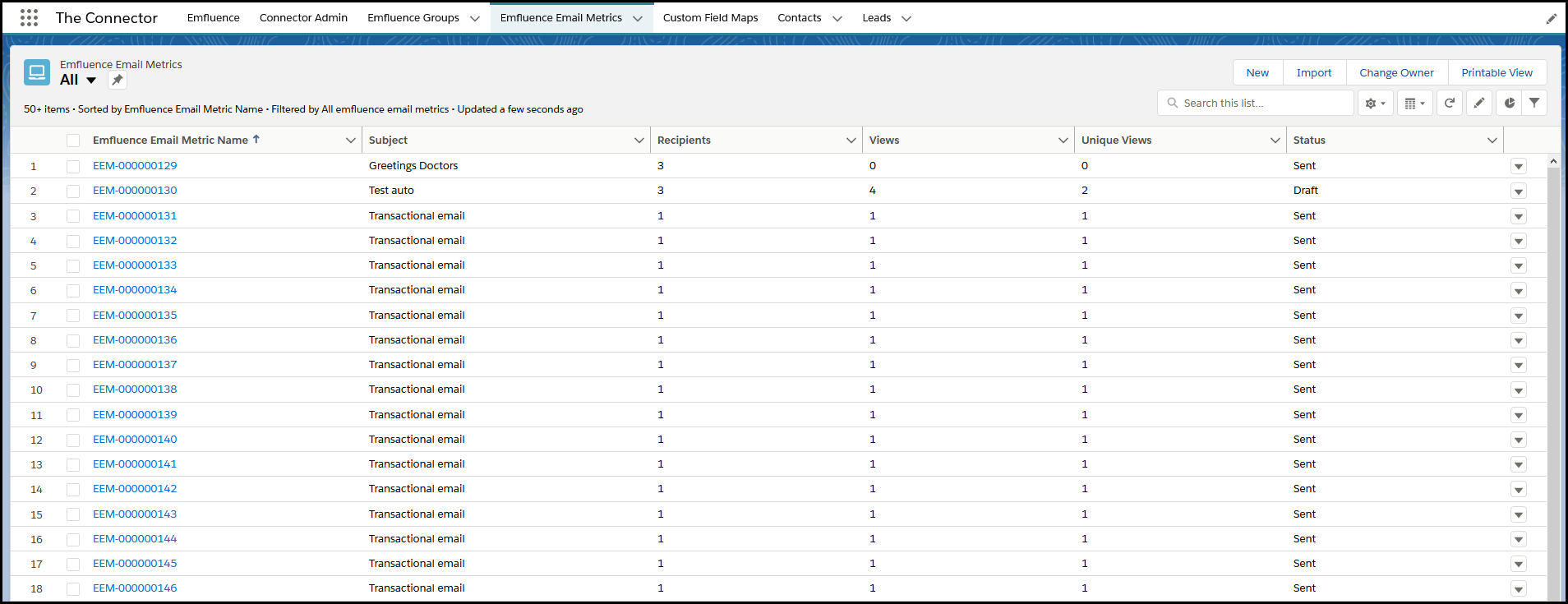
From this tab, all emails sent can be reviewed for detailed emfluence metrics.
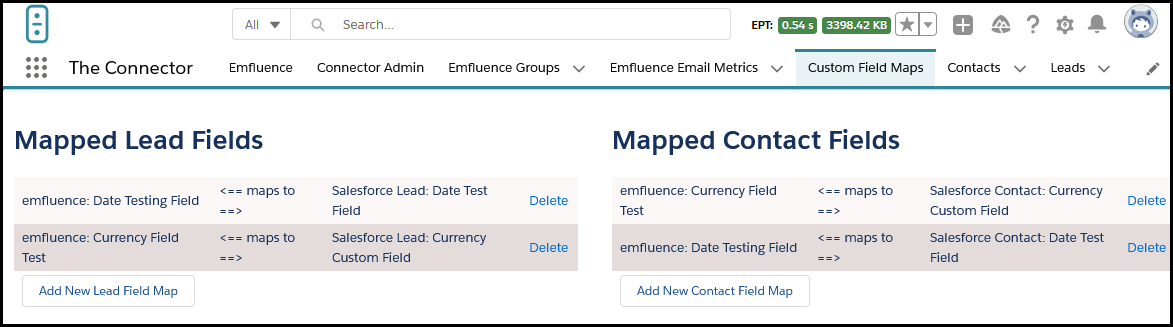
Within this section, custom fields created in emfluence can be mapped to matching/existing field types in Salesforce for Lead and Contact fields.
Custom Fields Created in Emfluence
Newly created Custom Fields in Emfluence may take several minutes to be fully visible to the API in Salesforce!
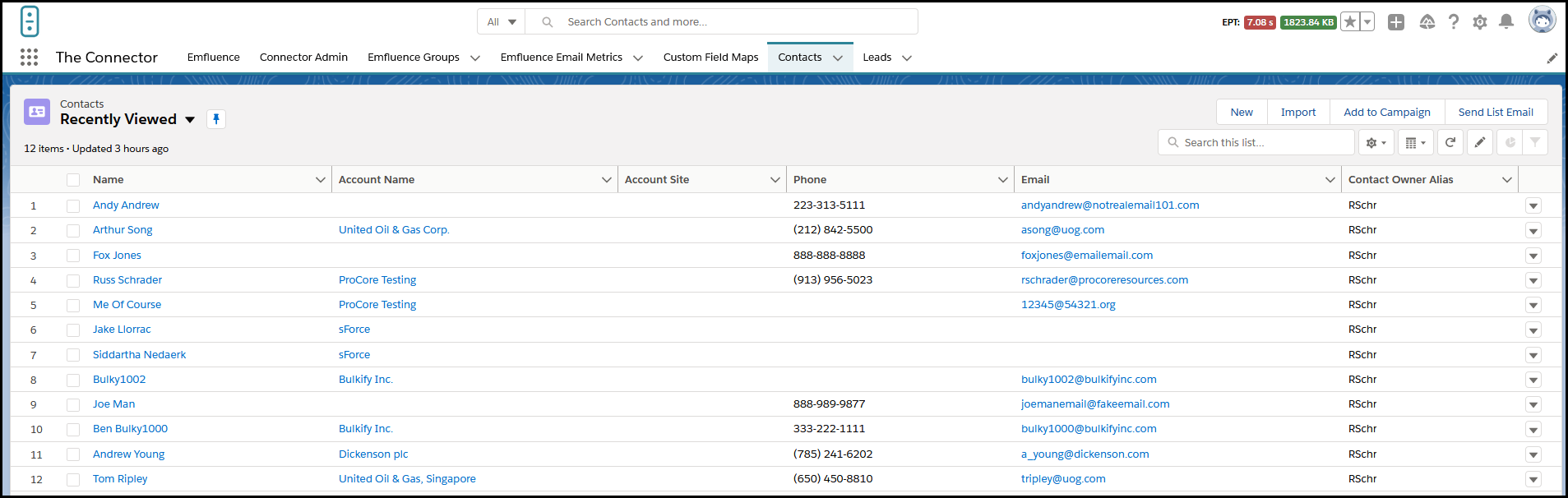
The Contacts page will look familiar between apps, if Contact is set as the default import type- all appropriately completed Contacts from emfluence will import.
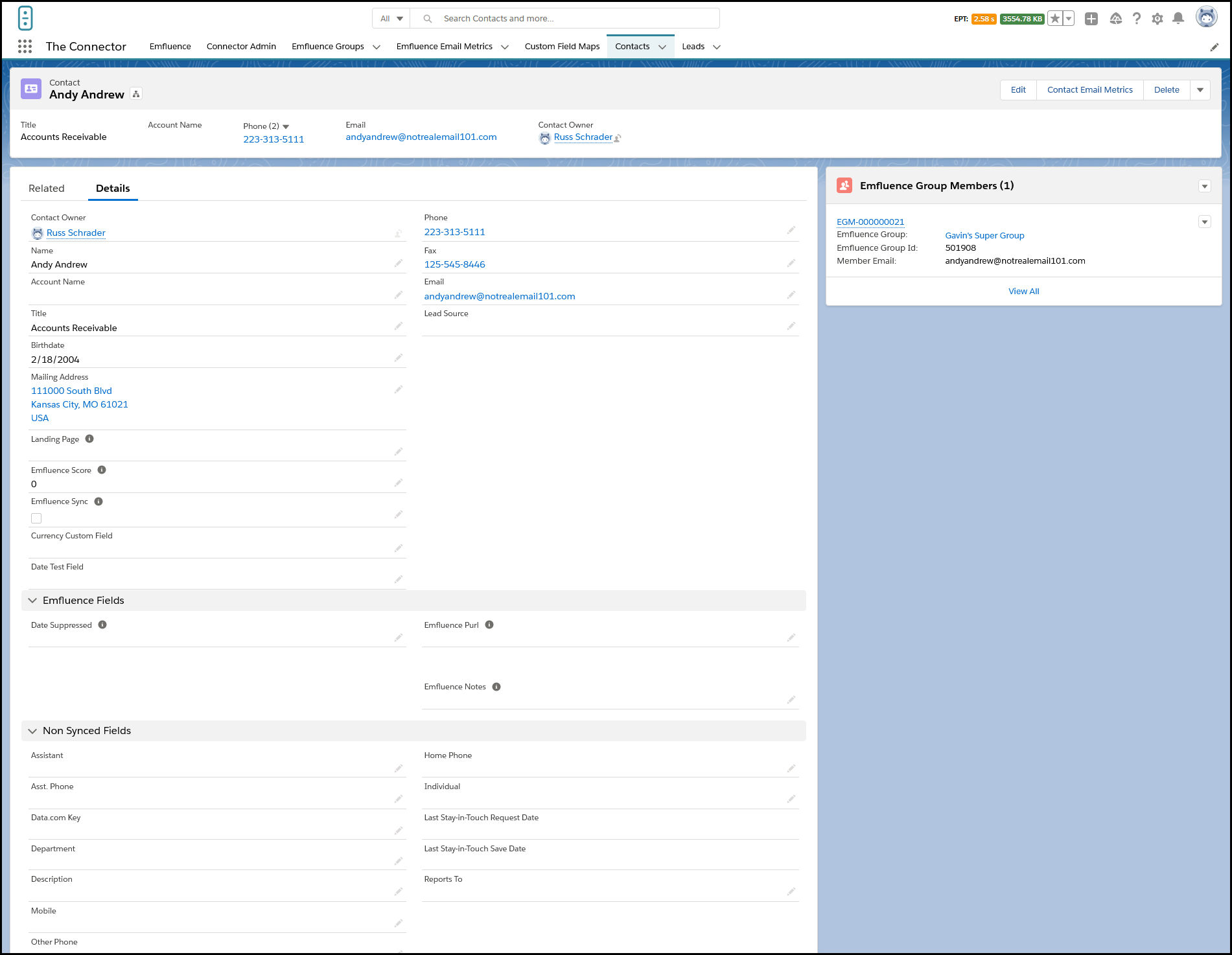
From within the Contact, emfluence fields will be populated - except for custom fields, these need to be added manually. This Contact's specific email metrics can be viewed in a read-only at the top-right of the Contact. On the right side of the Contact, any groups they are a member of will display. This view may vary based on your organizations setup.

The Leads page will look familiar between apps, if Lead is set as the default import type- all appropriately completed Contacts from emfluence will import.
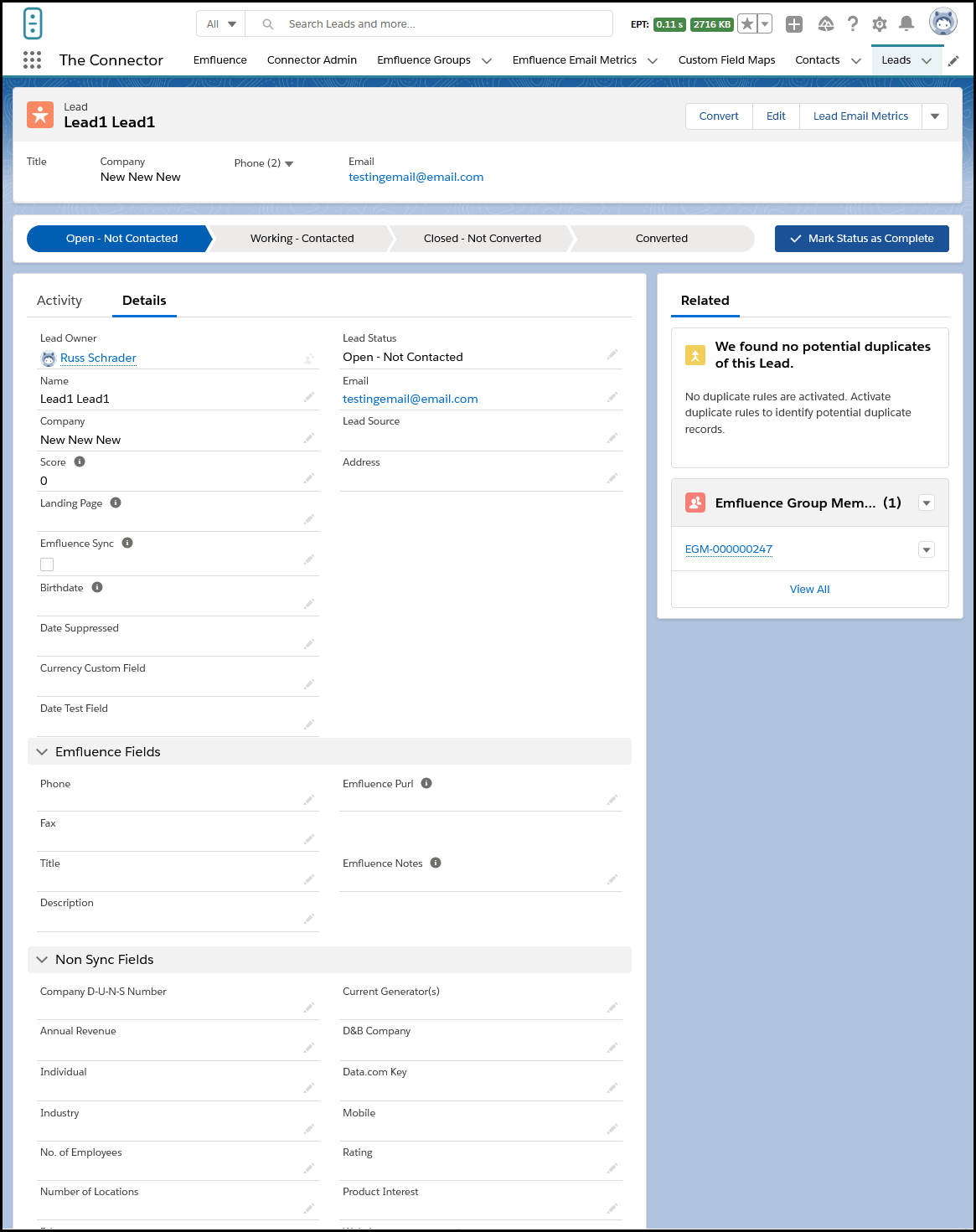
From within the Lead, emfluence fields will be populated - except for custom fields, these need to be added manually. This Lead's specific email metrics can be viewed in a read-only at the top-right of the Lead. On the right side of the Lead, any groups they are a member of will display. This view may vary based on your organizations setup.