Click the below options to expand detailed examples on each question option.
Checkbox
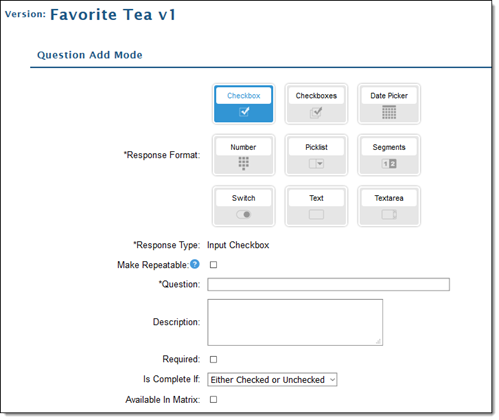
- Response Type: Input Checkbox - this cannot be modified
- Make Repeatable: This allows a question to be repeated multiple times on a Checklist - but this will prevent a question from being mapped to a related object in Salesforce.
- Question: This required field will be the text for your question on this section of your Checklist.
- Description: The description will display under your question.
- Required: Check this field to require the question to be answered.
- Is Complete If:
- "Either Checked or Unchecked":Question considered answered whether it is check or not checked.
- "Checked": Question is only complete if box is checked.
- "Unchecked": Question is only complete if box is unchecked.
- Available In Matrix: Check this box to make the question available within your created matrix.

- Checked: Select either "Not Available", "Optional", or "Required" for Attachments, Comments, and User Tasks
- Unchecked: Select either "Not Available", "Optional", or "Required" for Attachments, Comments, and User Tasks.
Click "Save" to save this question, or "Save & New" if you'd like to immediately create another question.
This checkbox will now be available under "Questions" to be added to your Checklist.
Checkboxes
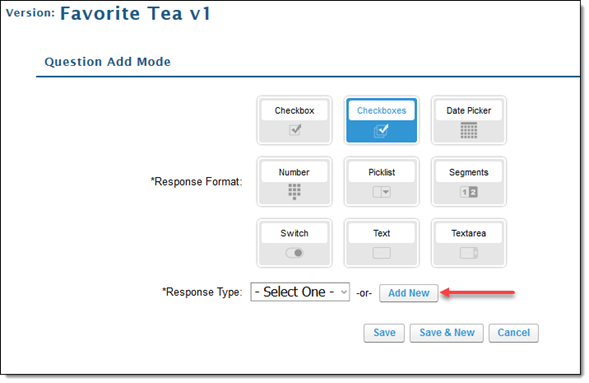
- Click "Add New"
- Name your question.
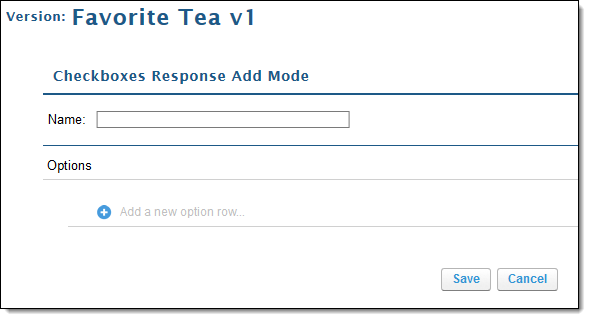
- Add options below by clicking the "+" sign.
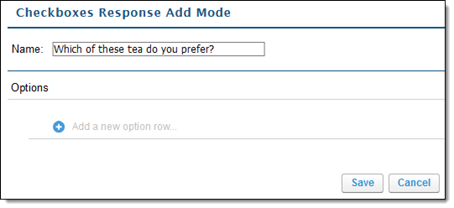
- Continue to click the "+" sign to keep adding options, as needed.
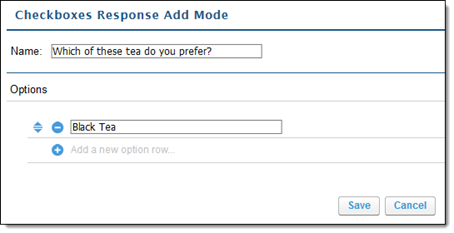
Continue to click the "+" sign to keep adding options, as needed.Click "Save"
- These Checkboxes responses will now be available under "Checkboxes"
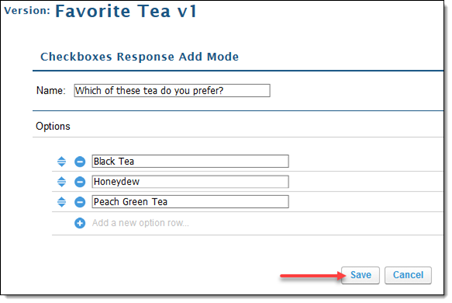
Click "Save" to save this question.
Date Picker
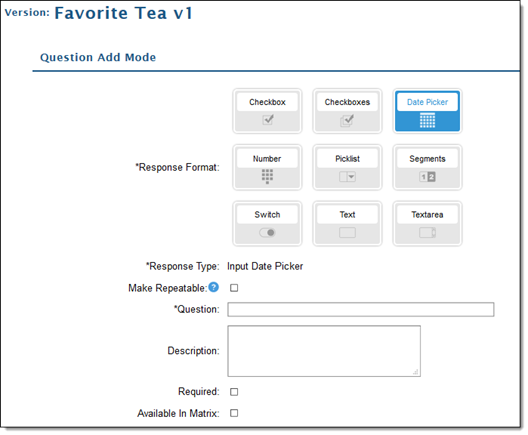
- Response Type: Input Date Picker - this cannot be modified.
- Make Repeatable: This allows a question to be repeated multiple times on a Checklist - but this will prevent a question from being mapped to a related object in Salesforce.
- Question: This required field will be the text for your question on this section of your Checklist.
- Description: The description will display under your question.
- Required: Check this field to require the question to be answered.
- Available In Matrix: Check this box to make the question available within your created matrix.

- Empty (Date): Select either "Not Available", "Optional", or "Required" for Attachments, Comments, and User Tasks
- Not Empty (Date): Select either "Not Available", "Optional", or "Required" for Attachments, Comments, and User Tasks.
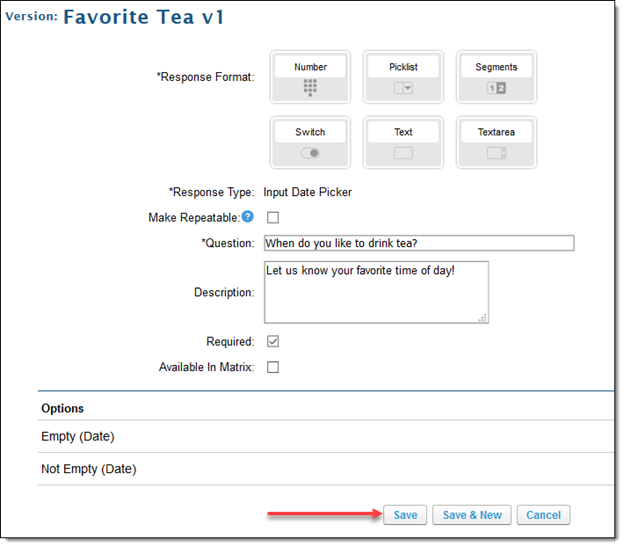
Click "Save" to save this question, or "Save & New" if you'd like to immediately create another question.
Number
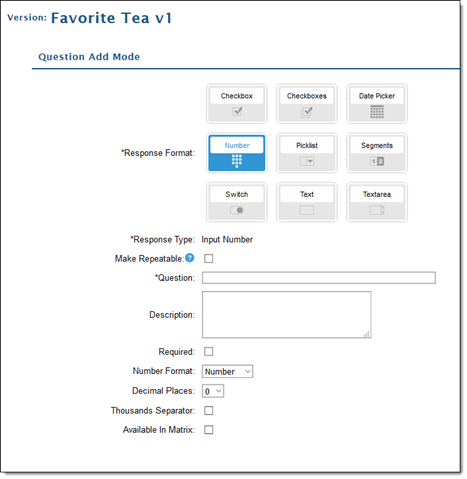
- Response Type: Input Number- this cannot be modified
- Make Repeatable: This allows a question to be repeated multiple times on a Checklist - but this will prevent a question from being mapped to a related object in Salesforce.
- Question: This required field will be the text for your question on this section of your Checklist.
- Description: The description will display under your question.
- Required: Check this field to require the question to be answered.
- Number Format: Options to format in Number, Currency, and Percent.
- Decimal Places: You can add up to 6 decimal places for input.
- Thousands Separator: Check this field to permit a thousands separator.
- Available In Matrix: Check this box to make the question available within your created matrix.

- Empty (Number): Select either "Not Available", "Optional", or "Required" for Attachments, Comments, and User Tasks
- Not Empty (Number): Select either "Not Available", "Optional", or "Required" for Attachments, Comments, and User Tasks.
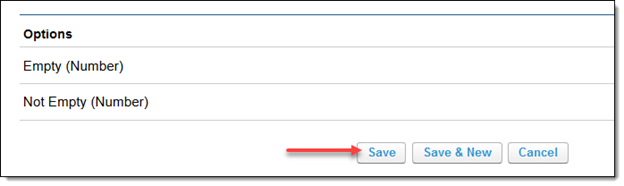
Click "Save" to save this question, or "Save & New" if you'd like to immediately create another question.
Picklist
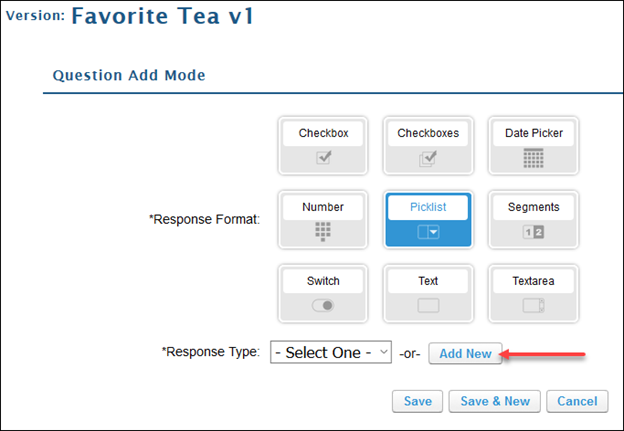
- Click “Add New” after selecting Picklist to start creating your Picklist options
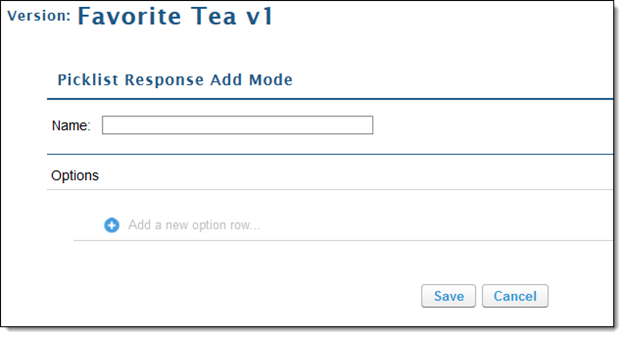
- Name your Picklist (this will show above the options on your Checklist).
a. Click the "+" sign to add your options as needed.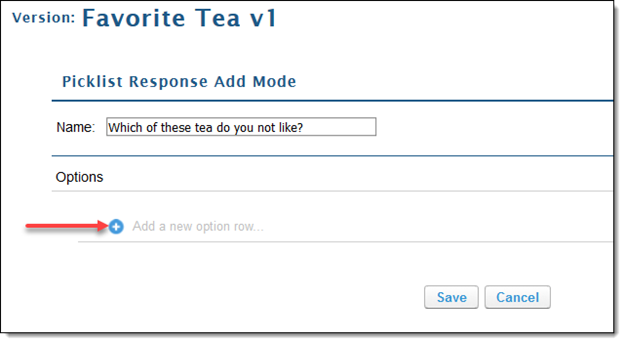
- Click "Save" after you've added the appropriate options.
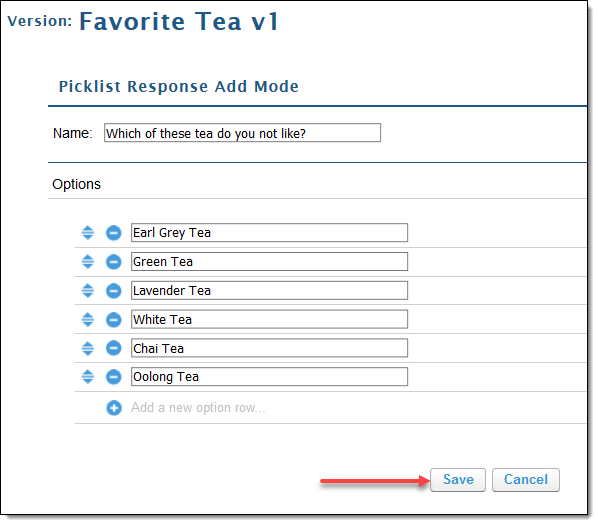
- After clicking save – this will save your Picklist, meaning it is ready to be saved as a question for your Checklist.
- If you select the built Picklist under “Response Type”, it will appear as so:
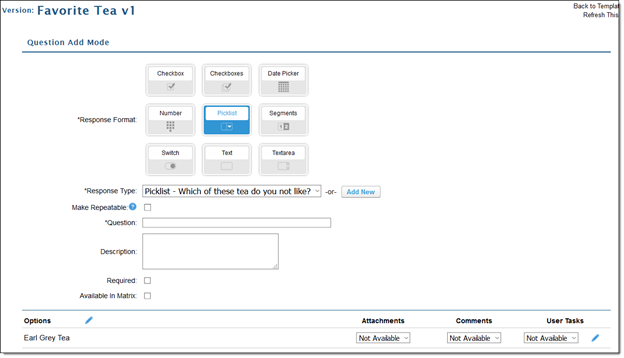
- From here, populate the fields similarly to other questions now.
- Response Type: The selected Picklist will appear here.
- Make Repeatable: This allows a question to be repeated multiple times on a Checklist - but this will prevent a question from being mapped to a related object in Salesforce.
- Question: This required field will be the text for your question on this section of your Checklist.
- Description: The description will display under your question.
- Required: Check this field to require the question to be answered.
- Available In Matrix: Check this box to make the question available within your created matrix.
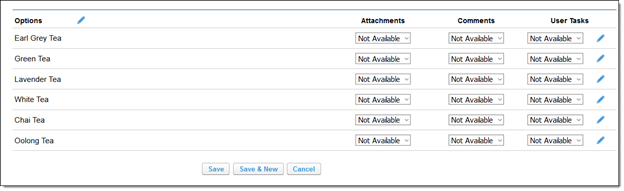
- Options: Select either “Not Available”, “Optional”, or “Required” for Attachments, Comments, and User Tasks.
Click "Save" to save this question, or "Save & New" if you'd like to immediately create another question.
Segments
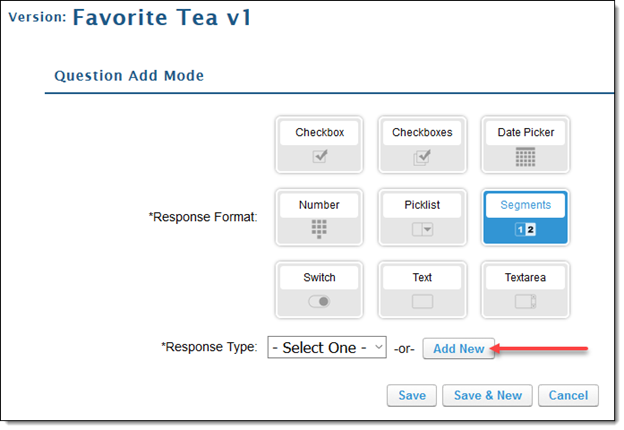
- After selecting Segments, click "Add New" to begin adding a new Segment Selection for a Checklist.
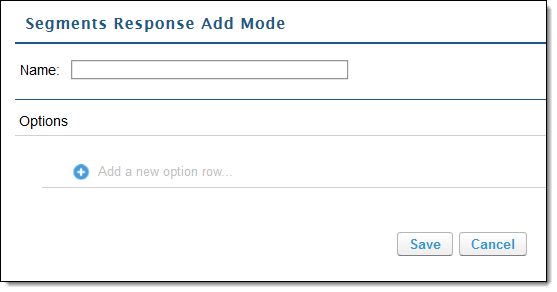
- Add a name to the appropriate field, and begin adding options for your segments
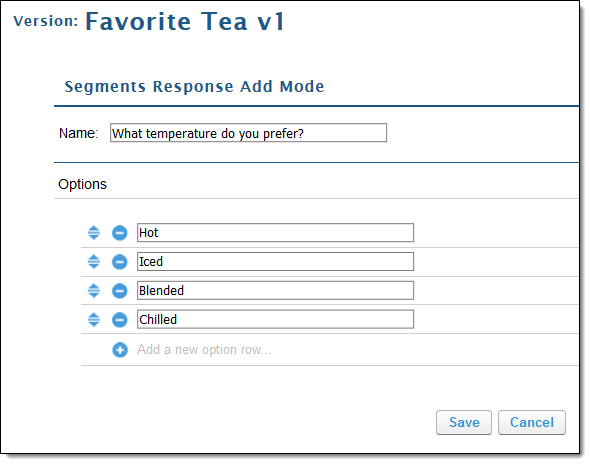
- After adding your appropriate options, click "Save".
This response type will now be saved and ready to add as a question to your Checklist! - Select your created "Segments" on your Response Type.
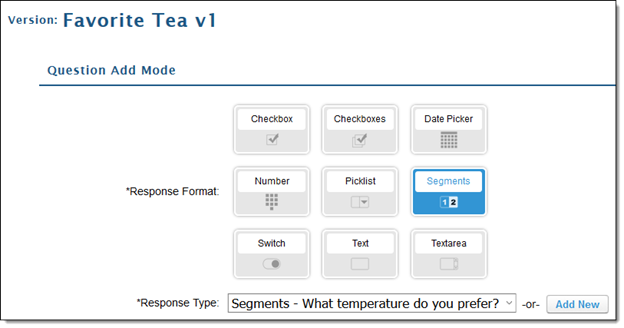
- Fields will appear below for you to complete for your Segments questions.
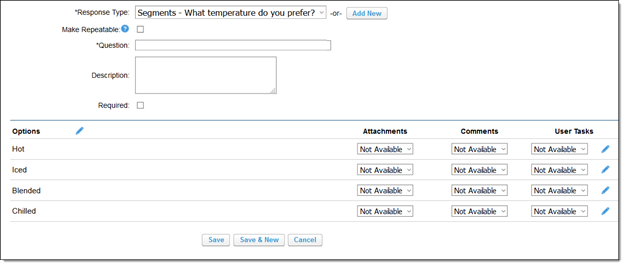
- Response Type: The selected Segments will appear here.
- Make Repeatable: This allows a question to be repeated multiple times on a Checklist - but this will prevent a question from being mapped to a related object in Salesforce.
- Question: This required field will be the text for your question on this section of your Checklist.
- Description: The description will display under your question.
- Required: Check this field to require the question to be answered.
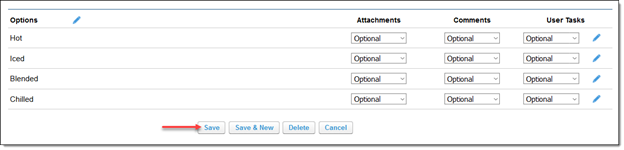
- Options: Select either “Not Available”, “Optional”, or “Required” for Attachments, Comments, and User Tasks.
Click "Save" to save this question, or "Save & New" if you'd like to immediately create another question.
Switch
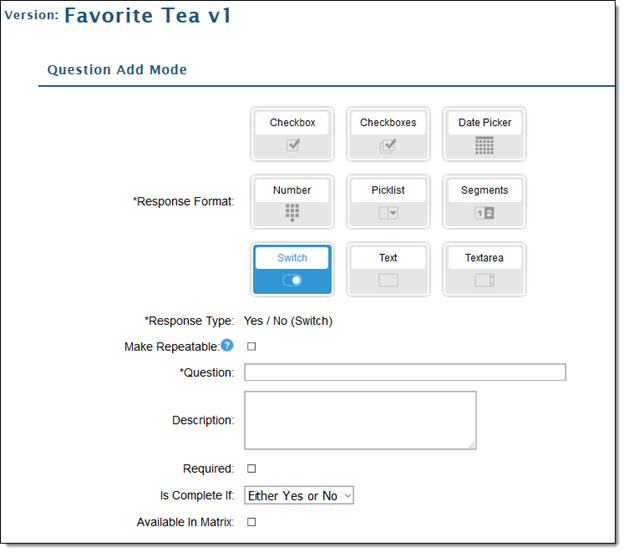
- Response Type: Yes / No (Switch) – cannot be changed
- Make Repeatable: This allows a question to be repeated multiple times on a Checklist - but this will prevent a question from being mapped to a related object in Salesforce.
- Question: This required field will be the text for your question on this section of your Checklist.
- Description: The description will display under your question.
- Required: Check this field to require the question to be answered.
- Is Complete If:
- "Either Yes or No":Question considered answered whether it is check or not checked.
- "Yes": Question is only complete if box is "Yes".
- "No": Question is only complete if box is "No".

- No: Select either "Not Available", "Optional", or "Required" for Attachments, Comments, and User Tasks
- Yes: Select either "Not Available", "Optional", or "Required" for Attachments, Comments, and User Tasks.
Click "Save" to save this question, or "Save & New" if you'd like to immediately create another question.
Textarea
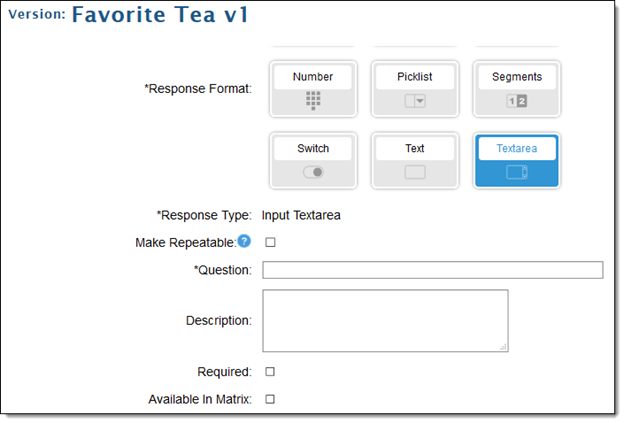
- Response Type: Input Textarea - this cannot be modified
- Make Repeatable: This allows a question to be repeated multiple times on a Checklist - but this will prevent a question from being mapped to a related object in Salesforce.
- Question: This required field will be the text for your question on this section of your Checklist.
- Description: The description will display under your question.
- Required: Check this field to require the question to be answered.
- Available In Matrix: Check this box to make the question available within your created matrix.

- Empty (Textarea): Select either "Not Available", "Optional", or "Required" for Attachments, Comments, and User Tasks
- Not Empry (Textarea): Select either "Not Available", "Optional", or "Required" for Attachments, Comments, and User Tasks.
Click "Save" to save this question, or "Save & New" if you'd like to immediately create another question.
Text
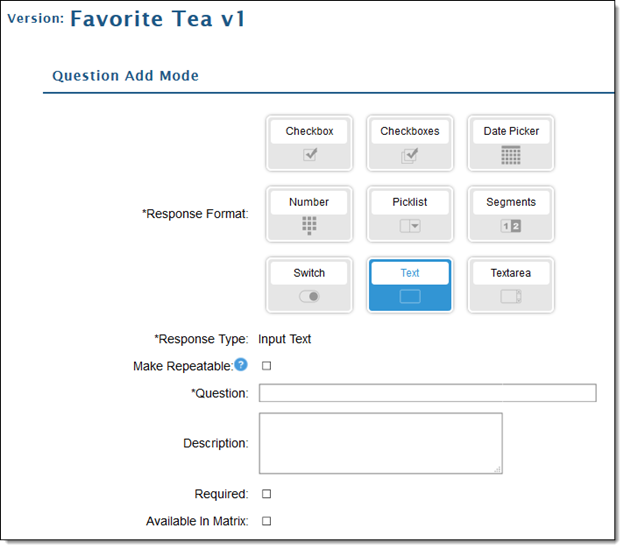
- Response Type: Input Text - this cannot be modified
- Make Repeatable: This allows a question to be repeated multiple times on a Checklist - but this will prevent a question from being mapped to a related object in Salesforce.
- Question: This required field will be the text for your question on this section of your Checklist.
- Description: The description will display under your question.
- Required: Check this field to require the question to be answered.
- Available In Matrix: Check this box to make the question available within your created matrix.

- Empty (Text): Select either "Not Available", "Optional", or "Required" for Attachments, Comments, and User Tasks
- Not Empry (Text): Select either "Not Available", "Optional", or "Required" for Attachments, Comments, and User Tasks.
Click "Save" to save this question, or "Save & New" if you'd like to immediately create another question.